
3d-design.ai
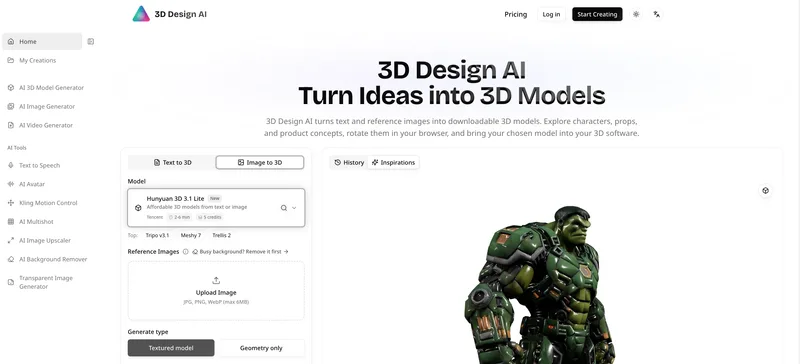
3D Design AI turns text descriptions or reference images into previewable, downloadable 3D models. Concept artists, designers, and 3D creators can use it to explore forms before refining them in other software.
One of 168 tools in Design Generators
Who it's for
- Concept artists exploring character, prop, or decorative-object forms from a written idea or reference image.
- 3D creators who want a generated starting asset to inspect in a browser and continue editing in compatible software such as Blender.
- Product designers exploring visual form before moving to CAD for dimensioned or constraint-driven design.
Not the right fit if…
- Teams designing parts that must meet exact dimensions or fit assemblies: the page directs those requirements to CAD.
- People who need a finished animation rig or editable CAD history: the page says generated mesh files do not include these.
How it fits your workflow
Start with a text description or a reference image, then select a model according to its supported inputs. Meshy 7 and Tripo v3.1 also accept multiple views of the same object.
Set the available generation options, such as geometry or textured output and model-specific mesh or texture controls. Generate the model and rotate the browser preview to inspect its form and surface.
Download the model and any supporting files supplied with it. Continue in compatible 3D software—for example, import a GLB into Blender—or check and prepare the geometry for a print workflow.
Pricing
Free: Limited free generation is offered. Sign in to see the options available to your account.
Hunyuan 3D 3.1 generation
5 credits per generation, as displayed on the page
- · Text or image input
- · Geometry-only or textured output
- · Displayed generation time of 2–6 minutes
Prices checked on Oct 21, 2026 from the vendor's site. They can change; confirm before you buy.
Key features
- Text-to-3D and image-to-3D generation
- Start a model from a written concept or a visual reference. Some listed models also accept multiple views of the same object.
- Multiple generation models
- Choose among Hunyuan 3D 3.1, Trellis 2, Meshy 7, and Tripo v3.1. The page compares their supported inputs and available controls.
- Model-specific generation controls
- Depending on the model and mode, adjust options such as geometry or textured output, face count, generation resolution, mesh simplification, texture size, polygon target, topology, and geometry or texture quality.
- Browser model preview
- Rotate the generated object to inspect its silhouette, connections, colors, materials, and surface details before deciding whether to continue or try another reference.
- Downloadable results
- Download the generated model and any supporting files supplied with the result. The page specifically describes importing a GLB into compatible 3D software.
- Reference preparation tools
- The site also presents image-generation, transparent-image, and background-removal tools for creating or preparing visual references.
Works with
- Blender
- Compatible 3D software and slicers
Limitations to know
- Generated models are starting assets; the page says detailed mesh editing and preparation may require a 3D editor.
- Generated results are not described as exact 3D scans, even when multiple image views are provided.
- A generated visual model does not provide editable CAD history or a finished animation rig.
- The page does not treat a good-looking preview as proof that a model is ready to print; mesh closure, thickness, dimensions, and geometry may need checking or repair.
Alternatives to consider
-
Image to 3D AI
Choose it if you want a description that specifically lists editable GLB output and auto-retopology alongside image-to-3D generation.
-
3D AI Studio
Choose it if you need a platform whose description includes production-ready models and optimized meshes, or a REST API.
-
Instant3D AI
Choose it if your workflow needs AI model editing and optimization in addition to generation from text or images.
Getting started
- Choose a single object to explore and prepare a description or reference image.
- Select a generation model that supports your input; use consistent views if using a multiple-image mode.
- Generate the model with the available output and quality settings.
- Review the browser preview and download the result for further work.
Frequently asked questions
Can I try 3D design with AI for free?
Yes. The page says limited free generation is available. Sign in to see the options available to your account.
Can I create 3D designs online without modeling experience?
You can start from a description or image without building a mesh by hand or installing generation software. Detailed editing and project preparation may still require a 3D editor.
Can I use multiple images of the same object?
Yes. Meshy 7 and Tripo v3.1 support multiple-image inputs on the site. The views should show the same design with consistent proportions and materials; the page notes that this does not make the result an exact 3D scan.
Can I edit the downloaded model in Blender?
Yes. The page says a downloaded GLB can be imported into Blender. Check the imported scale, textures, and geometry before using it in a scene.
Can AI-generated 3D models be used for 3D printing?
They can be a starting point, but the mesh should be checked for closure, adequate wall thickness, small-part thickness, and suitable dimensions. Repair or adjust the geometry as needed and export a format accepted by the slicer.
How does AI 3D generation differ from CAD design?
AI generation interprets text or images to create an object's form and, where selected, its surface appearance. CAD uses dimensions and constraints for precise designs, so the page recommends CAD when measured requirements or accurate fit are needed.