
BibGenie
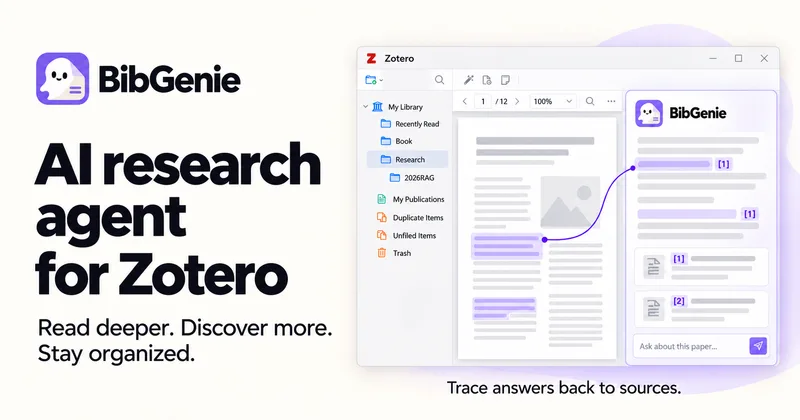
BibGenie adds AI chat, library search, scholarly discovery, and reference organization to Zotero. Researchers can ask questions across papers and follow citations back to source passages.
Who it's for
- Researchers using Zotero who want to ask questions about papers from the library and reader.
- Research teams comparing papers, notes, and annotations across multiple sources.
- Zotero users who want to discover scholarly works through OpenAlex and organize collections, tags, or metadata.
Not the right fit if…
- People who do not use Zotero: BibGenie is a Zotero plugin installed separately in Zotero.
How it fits your workflow
Install the .xpi plugin in Zotero and open BibGenie from the toolbar. The assistant appears in Zotero’s sidebar and can use the active item and current page as context.
Add library items, notes, tags, collections, attachments, annotations, or selected passages to a conversation. Search the library by keyword or meaning, or discover works through OpenAlex.
Review citations in the source material. For collection, tag, or metadata changes, inspect the proposed edits and affected items and approve them before they run.
Pricing
Free: The Free plan includes the core research workflow and 200 monthly credits. The page says OpenAlex and web tools cost one credit per successful call.
Free
$0
- · 200 credits every month
- · Core Zotero research workflow
- · Add Context and library search
- · Save as Note, BYOK, and custom models
Pro
$9.99/month
- · 10,000 credits every month
- · Everything in Free
- · No credit cost for OpenAlex, Web Search, or Web Extract
Max
$30/month
- · 35,000 credits every month
- · Everything in Pro
Pro Lifetime
$199 early-bird price; $359 shown as the other price
- · Pro access without a recurring subscription
- · One-time payment
- · Everything in Pro
Credit booster
$6.99 one-time
- · 5,000 extra credits
- · Valid for 6 months
Prices checked on Nov 1, 2026 from the vendor's site. They can change; confirm before you buy.
Key features
- Zotero sidebar chat
- Chat with BibGenie from Zotero’s side panel. It can track the active item and current page so questions can refer to the paper in view.
- Multi-source context
- Add items, notes, tags, collections, attachments, annotations, PDF pages, EPUB sections, and selected passages to a prompt. Multiple sources can be combined in one conversation.
- Library search and research discovery
- Search a personal Zotero library by keyword or semantic meaning, and discover scholarly works beyond the library through OpenAlex.
- Traceable citations
- Follow citations in answers back to relevant PDFs, EPUBs, snapshots, notes, or Zotero items and inspect supporting evidence in context.
- Library organization with approval
- Use BibGenie to organize collections, manage tags, and review or update metadata. Proposed changes and affected items are shown before users approve them.
- Model and data-route choices
- Use a managed model, bring a provider API key, or connect a local model through Ollama or LM Studio. The page says chat history, the library index, and vector embeddings are stored locally.
Works with
- Zotero
- OpenAlex
- OpenAI, Claude, DeepSeek, and Gemini
- Ollama and LM Studio
- Notion
- OpenAI-compatible endpoints
Limitations to know
- BibGenie is a Zotero plugin and requires Zotero; the page lists support for Zotero 7, 8, 9, and 10.
- The Free plan includes 200 monthly credits, and the page says OpenAlex and web tools cost one credit per successful call.
Alternatives to consider
-
Paperguide
Choose it if you want an all-in-one research assistant for finding and analyzing papers, literature reviews, reference management, and AI-backed academic writing rather than a Zotero-native plugin.
-
Ressearch AI
Choose it if your research workflow also needs data acquisition, Python or R analysis, visualization, editing, and publication-ready exports in a single cloud environment.
Getting started
Zotero 7, 8, 9, or 10; the page lists macOS, Windows, and Linux.
- Download the BibGenie .xpi file.
- In Zotero, open Tools → Plugins and choose Install Plugin From File from the gear menu.
- Select the file and restart Zotero.
- Open BibGenie from the toolbar and start with the built-in model or choose a provider or local model in settings.
Frequently asked questions
Does Zotero have a built-in AI chat assistant?
The page says Zotero does not currently include a built-in generative AI chat assistant for questions about papers. BibGenie is an independently developed third-party plugin installed separately.
How do I install the BibGenie plugin?
Download the latest .xpi file. In Zotero, open Tools → Plugins, choose Install Plugin From File from the gear menu, select the file, restart Zotero, and open BibGenie from the toolbar.
Do you offer a free plan?
Yes. The Free plan includes the core Zotero research agent, Add Context, library search, Save as Note, BYOK/custom models, and 200 monthly credits for official models.
Do I need my own API key?
No. The page says users can start with the built-in model and managed-model credits. They can also use their own API key, an OpenAI-compatible endpoint, or a local model through Ollama or LM Studio.
Where does my research data go?
Chat history and the library index are stored locally. Content sent to a model follows the selected route: managed models use BibGenie’s service, custom-provider requests go directly to that provider, and local-model requests stay on the user's machine.
Does BibGenie change my Zotero library without asking?
No. BibGenie shows proposed changes and affected items for review, and changes run only after the user approves them.
Can I connect BibGenie to Notion?
Yes. Connect a Notion workspace through Notion MCP in Settings → Connectors. BibGenie can retrieve or update connected workspace content within the permissions granted, and updates require approval.
Which versions of Zotero are supported?
The FAQ lists Zotero 7, Zotero 8, Zotero 9, and Zotero 10 as supported versions.