
Omnipilot
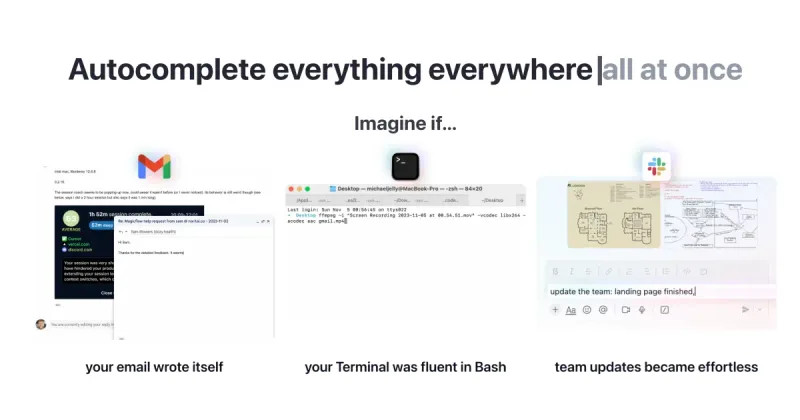
Omnipilot is presented as a macOS AI copilot that types across apps using on-screen context. It is aimed at people who want help drafting email, working with Bash, or writing team updates.
Who it's for
- Mac users who want AI assistance while drafting email in their existing apps.
- People using a macOS terminal who want help with Bash.
- Teams whose members want help preparing team updates on macOS.
How it fits your workflow
Use the assistant where you can type on macOS; the page says it can use what is on screen as context.
The examples given are drafting email, getting Bash help in a terminal, and preparing team updates. The page does not describe setup details or the specific output controls.
Pricing
The vendor doesn't publish prices. Check with Omnipilot directly.
Prices checked on Oct 26, 2026 from the vendor's site. They can change; confirm before you buy.
Key features
- Typing across macOS
- The page describes the AI as able to type anywhere the user can type on macOS.
- On-screen context
- The AI is described as having full context on what's visible on the screen.
- Email and team-update assistance
- The page gives email drafting and creating team updates as examples of tasks the assistant can help with.
- Bash assistance
- The page describes the terminal becoming fluent in Bash as an example of how the assistant could help.
Limitations to know
- The supplied page does not state pricing, system requirements, or supported macOS versions.
Alternatives to consider
-
Macaify
Choose it if you want a macOS app described as working in any app through text selection and a shortcut, with chat mode and custom models.
-
sideOS
Choose it if you want a macOS assistant whose described capabilities include voice interaction, app automation, on-device dictation, and background tasks.
-
MacCopilot
Choose it if you want to select part of the screen and ask AI models about its contents, with support for several model providers and local servers.
Getting started
- Download the app; the page says there is no waitlist.
- Use it in a macOS app or terminal where you can type.
- Try one of the page's examples: email, Bash, or a team update.