
RainbowSay
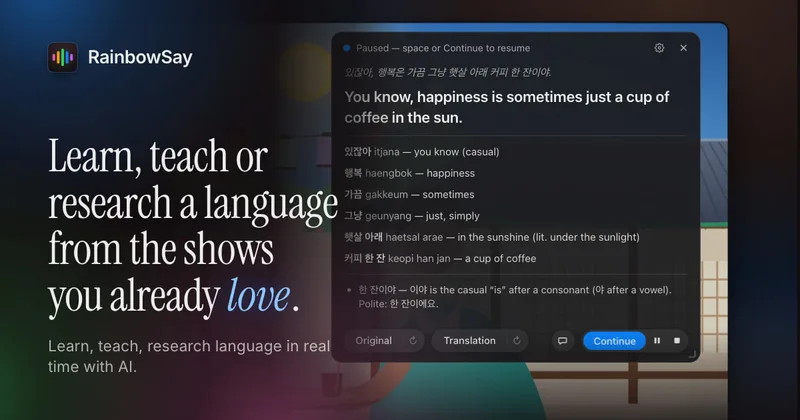
RainbowSay turns Mac audio or microphone speech into sentence-level language lessons, speaking feedback, and live translated captions. Language learners, teachers, and creators use it to study, teach, or prepare content from real speech.
Who it's for
- Language learners on Apple Silicon Macs who want sentence-level translations and explanations while watching or listening to authentic material.
- Language teachers who need live translated captions for classroom material or speech from a microphone.
- Language-content creators who want sentence-level assistance and SRT exports while working with audio or video.
Not the right fit if…
- People using Windows or Linux: the page says the app is currently for Mac, with those versions planned but not yet available.
- People using Intel Macs or macOS earlier than 14.2: the stated requirement is Apple Silicon with macOS 14.2 or later.
How it fits your workflow
Install the Mac app and sign in with Google. Play a series, video, podcast, lecture, or call, then select Listening or Subtitles; for speaking practice, choose Speaking and use a microphone.
Listening pauses at sentence boundaries and presents a translation, vocabulary, and grammar explanation. Speaking transcribes and translates what you say and offers one correction. Subtitles displays live captions and translations, with saved sessions available for replay or SRT export.
Pricing
Free: Free to start with one-time starter credit and no credit card. Free Subtitles display one language at a time; students, teachers, and creators can email RainbowSay to request extra credit.
Free
$0
- · One-time starter credit with no credit card required
- · Credit can be used across Listening, Speaking, and Subtitles
- · Subtitles show one language at a time
Pro
$29/month
- · Monthly allowance shared across Listening, Speaking, and Subtitles
Max
$100/month
- · Monthly allowance shared across Listening, Speaking, and Subtitles
Prices checked on Oct 26, 2026 from the vendor's site. They can change; confirm before you buy.
Key features
- Sentence-by-sentence Listening
- Listens to audio playing on the Mac, pauses the player at the end of a sentence, and presents the sentence with a translation, vocabulary with readings, and a grammar note. Users can replay the original or translation with word-by-word highlighting and ask questions about the sentence.
- Speaking practice
- Captures a learner’s spoken sentence through a microphone, transcribes it, translates it back, and lists the words used. It identifies one priority correction or a pattern the speaker used well, and supports push-to-talk or hands-free use.
- Live Subtitles
- Displays transparent, always-on-top captions over audio or a selected microphone source. Users can show the original and translations, with up to three translated languages at once on paid plans.
- Subtitle customization and export
- Subtitle text and backgrounds can be styled by language, and language lanes can be placed in separate movable windows. Saved subtitle sessions form timelines that can be replayed, copied, or exported as timed SRT files.
- Saved study history
- Listening and Speaking sessions retain sentences, audio, vocabulary, grammar, and chats; Subtitles sessions retain time-marked transcripts. The app also shows activity heatmaps and streaks.
- Language coverage
- Listening and Speaking support 57 languages. Live Subtitles automatically detect the spoken language and translate into 13 listed languages.
Works with
- OpenAI
- Google sign-in
Limitations to know
- The app requires an Apple Silicon Mac running macOS 14.2 or later; Windows and Linux versions are not yet available.
- The Free plan displays one Subtitles language at a time, while up to three translations at once are described for paid plans.
- Auto-pause depends on the player responding to the Mac Play/Pause media key.
- Session audio is sent to OpenAI for transcription and translation.
Alternatives to consider
-
FluentU
Choose it if you want an online platform with a curated authentic-video library, interactive subtitles, vocabulary practice, and mobile apps rather than a Mac app that listens to audio playing on your computer.
-
Lingopie
Choose it if you want a language-learning platform with TV, movies, podcasts, stories, and audiobooks plus flashcards and quizzes, rather than RainbowSay’s live Mac audio and microphone workflows.
Getting started
Apple Silicon Mac running macOS 14.2 or later.
- Download and install RainbowSay on your Mac.
- Sign in with Google; the page says free starter credit is waiting and no API keys or setup are needed.
- Play audio and select Listening or Subtitles from the menu bar, or choose Speaking and use a microphone.
Frequently asked questions
Does RainbowSay work with Netflix, YouTube, or other players?
It listens to sound playing on the Mac rather than connecting to a particular site or player. The page says users can follow all Mac audio or select a single app. Auto-pause uses the Mac Play/Pause media key, so it works with players that respond to that key.
Which languages are supported?
Listening and Speaking work with 57 languages. Live Subtitles automatically detect the spoken language and translate into 13 languages: English, Spanish, Portuguese, French, Japanese, Russian, Chinese, German, Korean, Hindi, Indonesian, Vietnamese, and Italian.
Does RainbowSay record the screen?
No. The page says the app captures audio only and has no screen recording. The microphone is used for Speaking or when selected as the Subtitles source.
Which Macs are supported?
Apple Silicon Macs running macOS 14.2 or later.
Is there a Windows or Linux version?
Not yet. The page says the Mac app comes first and Windows and Linux versions are planned.
How does the free plan work?
Signing in provides one-time starter credit with no credit card required. It can be spent on Listening, Speaking, or Subtitles; the Free plan shows one subtitle language at a time. Students, teachers, and creators can email RainbowSay to request extra credit.
Is study history private?
The page says sentences, audio clips, chats, and subtitle timelines are stored locally on the Mac and can be deleted. RainbowSay’s servers receive usage totals for billing, while session audio is sent to OpenAI for transcription and translation.