
Everygen AI
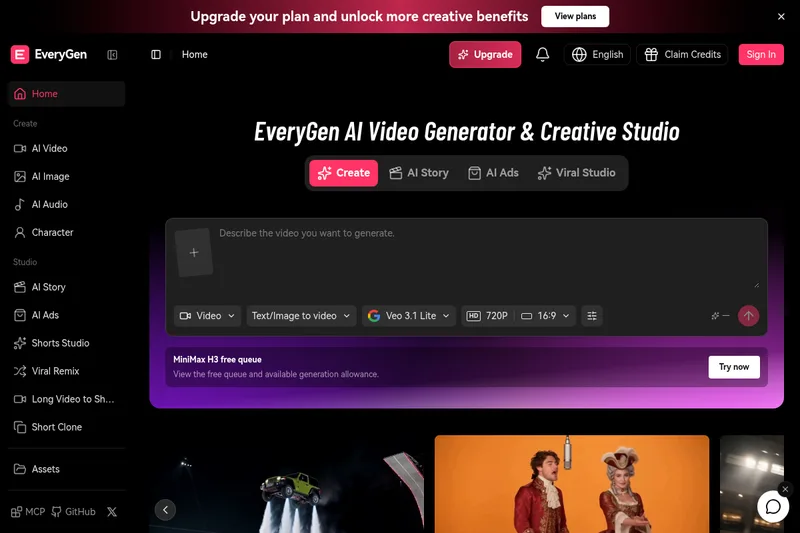
EveryGen AI lets creators and production teams generate and edit video, image, and audio assets, then plan and assemble multi-scene videos with a conversational Video Agent.
One of 209 tools in Video Generation
Who it's for
- Marketing teams creating ads, video variants, and social content from prompts or supplied media.
- Ecommerce teams producing product visuals and clips that use images as scene references.
- Production teams and agencies planning multi-scene videos and coordinating generated visuals, narration, music, and effects.
How it fits your workflow
Describe the project’s purpose, audience, and style to the Video Agent, and add reference images, video, audio, or documents. Review and adjust the proposed scenes, timing, and characters.
Generate clips and supporting images, dialogue, narration, music, and effects with the available tools and models. The studio keeps scenes, references, and generated assets together.
Review the assembled result, revise the plan or saved media through conversation, and download the video. The MCP can also connect supported assistant clients to EveryGen for media and project requests.
Pricing
Free: The Free plan includes 10 one-time credits for trying video generation at 720p with a watermark.
Free
10 one-time credits
- · Try video generation at 720p
- · Generated video includes a watermark
Paid plans
Monthly or annual plans; prices and credit amounts are not stated in the supplied content
- · Monthly or annual credits
- · Watermark removal
- · Commercial license
Prices checked on Oct 20, 2026 from the vendor's site. They can change; confirm before you buy.
Key features
- AI video generation
- Generate video from text, images, reference footage, or other supported inputs. The site lists models and workflows for text-to-video, image-to-video, reference-to-video, motion control, and video editing.
- Video Agent and project planning
- Describe a project's purpose, audience, and style, then develop and review a scene plan. The Agent can help create media, revise plans, edit saved media through conversation, and assemble the result for download.
- AI image generation and editing
- Create or edit characters, product visuals, and scene references, then bring selected images into the video studio.
- Audio, music, and sound effects
- Create narration, character dialogue, music, songs, ambience, and effects, and arrange saved audio alongside video clips.
- Reference-guided creation
- Use reference images, videos, or audio to guide style, subjects, or motion. The page lists support for up to 30 reference images and up to 10 reference videos and audio clips, with inputs varying by mode.
- Video editing and templates
- Edit existing footage with AI instructions and start from templates or examples such as day-to-night scenes, photo animation, or block-world videos.
Works with
- EveryGen AI MCP
Limitations to know
- The page states a maximum video length of 30 seconds per generation.
- The Free plan provides 10 one-time credits and video generation at 720p with a watermark.
- Available reference inputs depend on the selected creation mode.
Alternatives to consider
-
VideoAny
Choose it if you want a video-first studio that also offers integrated image and audio tools, with a free tier and paid plans for higher-resolution and commercial use.
-
VideoGen
Choose it if repeatable AI workflows, built-in editor tools, and studio-style automation for short- and long-form video are the priority.
-
OpenArt
Choose it if you want a broader creation platform that also covers characters and 3D worlds alongside image, video, and audio.
Getting started
- Open the EveryGen AI video studio and describe the project, audience, and style.
- Add any reference media or documents needed for the project.
- Review the scene plan and approve generation costs before creating paid media.
- Generate, review, and edit the project, then download the video.
Frequently asked questions
Which model should I use?
The page recommends choosing by the scene: Seedance for controlled motion, Veo for polished image-to-video, and Kling for motion imitation. For still assets, it lists image models such as Wan 2.7 Image Pro and GPT Image 2.
Can EveryGen AI animate images?
Yes. Create or upload an image, then open an image-to-video workflow such as Seedance, Veo, or Wan 3.0.
Can EveryGen AI generate audio and music?
Yes. The studio supports narration, character dialogue, and sound effects, and its music generator creates music and songs from a prompt, style, or lyrics.
Can I continue a project later?
Yes. The page says users can return to the video studio to adjust scenes, reuse assets, or edit saved media, and can create one scene first before returning to finish the project.
How do I connect the MCP?
Connect the EveryGen AI MCP from the MCP page and sign in to an EveryGen account. The listed clients are Claude, ChatGPT, Claude Code, and Cursor. Review the credit quote and approve generation before paid media is created.
Should I review videos made with EveryGen AI?
Yes. The page recommends checking for visual artifacts, product accuracy, brand fit, usage rights, consent for likenesses and voices, and suitability for the intended audience and platform.