
screensnapai
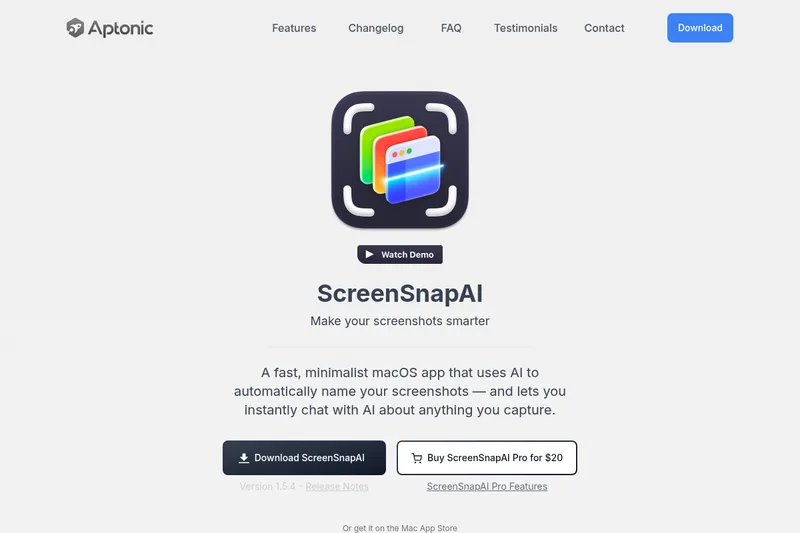
ScreenSnapAI automatically names and tags screenshots and lets Mac users ask AI questions about selected screen content. It is for people who want screenshot organization and screen-based answers without switching apps.
One of 81 tools in Chat
Who it's for
- Mac users who want screenshots automatically named and tagged as they capture them.
- Productivity workers who need quick AI answers about a selected area of their screen while using other apps.
- Users of Intel or Apple Silicon Macs running macOS 13 or later who want a native screen assistant.
Not the right fit if…
- People using macOS earlier than 13: the page lists support for macOS 13 and later.
How it fits your workflow
Download and open the macOS app, then invoke the AI Assistant from its menu item or keyboard shortcut. Select an area of the screen to bring up a customizable list of actions.
Choose an action to receive an answer, then ask follow-up questions. ScreenSnapAI also automatically names and tags screenshots and chats.
Pricing
ScreenSnapAI Pro
$20; billing interval is not stated.
Prices checked on Oct 13, 2026 from the vendor's site. They can change; confirm before you buy.
Key features
- Automatic screenshot naming and tagging
- Automatically names and tags screenshots to help organize captured images.
- AI chat about screen content
- Lets users select an area of the screen and ask the AI assistant about what they captured.
- Follow-up questions
- Users can ask follow-up questions after receiving an answer.
- Customizable action list
- Selecting a screen area brings up a customizable list of actions.
- Native macOS app
- The page describes the app as fast and native, and lists support for Intel and Apple Silicon Macs running macOS 13 or later.
Alternatives to consider
-
heyclicky
Choose it if you want a Mac screen assistant that can also respond to voice, draw on the screen, and run automated agents.
-
Vidix
Choose it if you want to process selected text or images inside Mac apps with inline editing, a workflow canvas, and model or provider management.
Getting started
Intel or Apple Silicon Mac running macOS 13 or later; macOS Tahoe is also listed as supported.
- Download ScreenSnapAI.
- Open the AI Assistant from the menu item or via keyboard shortcut.
- Select an area of the screen and choose from the customizable actions.
- Receive an answer and ask follow-up questions.