
beam
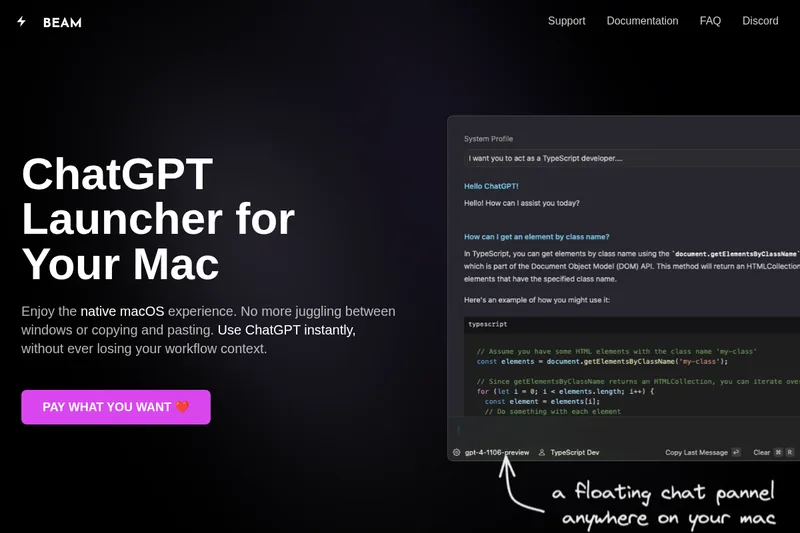
Beam gives Mac users a floating ChatGPT panel for asking about selected text, screen areas, and PDFs without leaving their current app. It also provides reusable prompt templates and configurable AI profiles.
One of 81 tools in Chat
Who it's for
- Mac users who want to ask ChatGPT about text in their current app and insert responses without switching windows.
- Writers who reuse prompts for tasks such as drafting emails or blog posts and want to save them as fill-in templates.
- Mac users who need to ask questions about screen content or PDF documents using ChatGPT.
How it fits your workflow
Press Ctrl + Space to open Beam's floating chat panel over another app. Select text to discuss with ChatGPT, then insert the response back into the app with a key press.
Use a hotkey to select an area of the screen and ask ChatGPT about it. For PDFs, request summaries, ask questions, or look for answers in the document.
Create actions for tasks such as translating text or summarizing websites, save recurring prompts as templates, and configure AI profiles for preferred responses.
Pricing
Pay what you want
Pay what you want; no specific amount is stated on the page.
Prices checked on Oct 22, 2026 from the vendor's site. They can change; confirm before you buy.
Key features
- Floating chat panel
- Open a chat panel over other applications with Ctrl + Space, allowing access to ChatGPT without leaving the current context.
- Selected-text actions
- Select text in an app, discuss it with ChatGPT, and insert a response back into the app with a key press.
- Screen-area questions
- Select an area of the screen using a hotkey and ask ChatGPT about it.
- Custom actions
- Create actions for tasks the page lists, including summarizing websites, translating text, and explaining concepts.
- Prompt templates
- Save prompts for recurring writing tasks, such as blog posts, emails, and birthday wishes, then fill in the blanks when reusing them.
- PDF chat
- Use ChatGPT to summarize PDF documents, ask questions about them, and find answers in their content.
Works with
- OpenAI
Limitations to know
- The product is presented as a native macOS app; the page does not describe support for other operating systems.
Alternatives to consider
-
RecurseChat
Choose it if you want a Mac AI chat app that also supports local models and offline chats.
-
ThinkBoxAI
Choose it if you want a cross-platform desktop client that connects to the OpenAI API using your API key.
Getting started
A Mac running macOS; the page does not state a specific macOS version.
- Open Beam on your Mac.
- Press Ctrl + Space to open the floating chat panel.
- Select text or a screen area to ask ChatGPT about it, or use Beam to work with a PDF.
- Save prompts as templates or configure AI profiles for recurring needs.